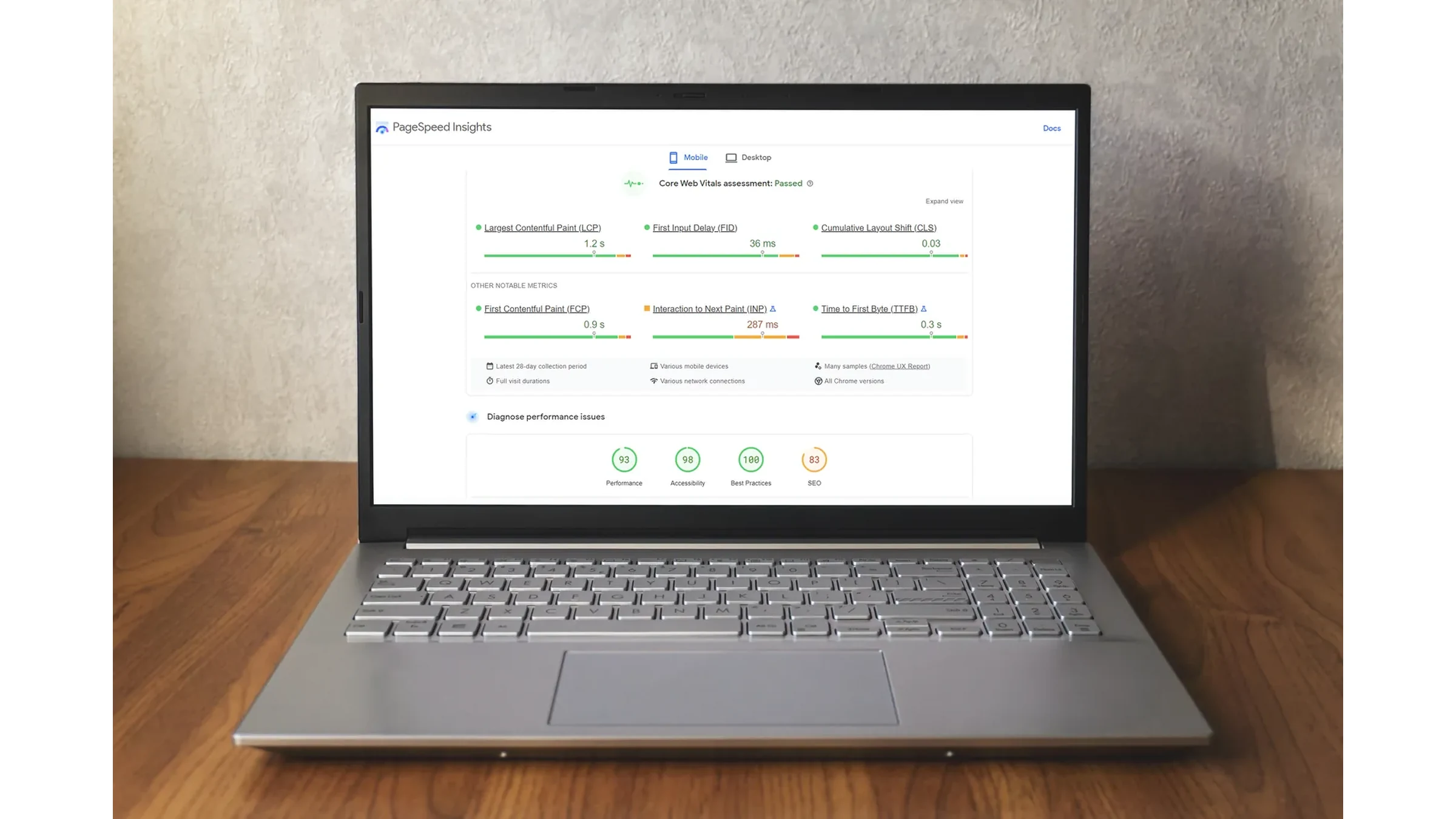
PageSpeed Insights shows that a website is slow. What it does not always show is why.
You can compress images, turn on caching, minify CSS, and still end up with a WordPress site that fires dozens of redundant database queries on every visit, hangs on an external API, or parses the exact same content from scratch every single time.
That is why, when optimizing WordPress, we do not start by chasing a score of 100 on PageSpeed. First, we find out where the application is actually losing time.
Below, I have put together 15 things worth checking in your WordPress code and configuration. These are issues that crop up regularly on existing websites and online shops, and some can be spotted and fixed in under fifteen minutes.
First: PageSpeed Insights does not show the whole picture
Before diving into the code, you need to tell apart two different sets of metrics that PageSpeed Insights packs into a single report.
Lab data comes from Lighthouse. It is a synthetic test run in controlled conditions on an emulated device and connection.
Field data (real user data) comes from the Chrome UX Report and covers the last 28 days. This is where you will find the Core Web Vitals: LCP, INP, and CLS.
You can easily score 90 in Lighthouse and still struggle with poor INP for real users. The reverse is just as common: a mediocre lab score paired with healthy real-world user metrics.
That is why the number inside the colored circle should never be your primary optimization target.
1. Stop fetching the same ACF fields multiple times
This is a very simple example, but it perfectly illustrates the mindset behind backend optimization.
In a template, you might come across something like this:
php
$title = get_field('title');
$price = get_field('price');
$image = get_field('image');
If you need several fields from the same object, see if you can fetch them together in one call:
php
$fields = get_fields();

$title = $fields['title'];
$price = $fields['price'];
$image = $fields['image'];
The goal is not to blindly replace every single get_field(). ACF and WordPress use internal caching mechanisms, so subsequent calls do not necessarily trigger new SQL queries.
However, it is always worth watching out for code that repeatedly retrieves and processes identical data—especially inside loops.
2. Do not poll external APIs on every request
One of the quickest ways to ruin your TTFB is to tie page rendering to a third-party API.
For example:
php
$data = file_get_contents('https://api.example.com/data');
$data = json_decode($data, true);
Every visitor now has to wait not only for your server, but also for the third-party system to respond.
If the API responds in 100 ms, things might look fine. If it takes two seconds, your site stalls for two seconds. If the API goes down, your site goes down with it.
If the data does not need to be refreshed second-by-second, cache it:
php
$data = get_transient('crm_data');

if ($data === false) {
    $response = wp_remote_get('https://api.example.com/data');

    if (!is_wp_error($response)) {
        $data = json_decode(
            wp_remote_retrieve_body($response),
            true
        );

        set_transient(
            'crm_data',
            $data,
            15 * MINUTE_IN_SECONDS
        );
    }
}
Now, the external system is queried on a schedule, rather than on every single page view.
For mission-critical integrations, take it a step further: sync data in the background, and have the front end read strictly from local storage.
3. Watch out for disk I/O on every request
Reading and parsing files from disk every time WordPress generates a page introduces unnecessary overhead.
php
if (file_exists(get_template_directory() . '/config.json')) {
    $config = json_decode(
        file_get_contents(
            get_template_directory() . '/config.json'
        ),
        true
    );
}
If the same data is needed multiple times within a single request, keep the result in memory:
php
function get_config() {
    static $config = null;

    if ($config === null) {
        $config = json_decode(
            file_get_contents(
                get_template_directory() . '/config.json'
            ),
            true
        );
    }

    return $config;
}
If the configuration rarely changes, go further: store it in persistent cache or pre-compile it ahead of time.
Custom WP_Query instances are among the first things we look into when diagnosing a slow site.
A typical query often looks like this:
php
$query = new WP_Query([
    'post_type'      => 'post',
    'posts_per_page' => 6,
]);
If you are simply displaying the six latest posts and do not need pagination or the total count of matches, add:
php
$query = new WP_Query([
    'post_type'      => 'post',
    'posts_per_page' => 6,
    'no_found_rows'  => true,
]);
This tells WordPress to skip the extra query calculation needed to determine total matching rows (SQL_CALC_FOUND_ROWS).
On an isolated query, the difference might seem negligible. When you have several such components, a large database, and high traffic, these micro-costs quickly add up.
5. If you only need IDs, do not fetch full objects
The same logic applies to the data returned by WP_Query.
If you only need a list of product IDs, there is no need to hydrate complete WP_Post objects.
php
$query = new WP_Query([
    'post_type' => 'product',
]);
Limit the output fields instead:
php
$query = new WP_Query([
    'post_type' => 'product',
    'fields'    => 'ids',
]);
This is especially critical when dealing with large datasets and background processing jobs.
6. Watch out for posts_per_page set to -1
posts_per_page => -1 is convenient because it means: fetch everything.
And that is precisely why it is dangerous.
php
$query = new WP_Query([
    'post_type'      => 'product',
    'posts_per_page' => -1,
]);
With 40 records, you will hardly notice. With 40,000, your server will grind to a halt.
Unless you strictly need the entire dataset at once, implement limits and pagination:
php
$query = new WP_Query([
    'post_type'      => 'product',
    'posts_per_page' => 12,
]);
In an existing codebase, do a quick global search for posts_per_page and inspect every occurrence of -1.
WordPress makes it very easy to filter posts by custom metadata:
php
'meta_query' => [
    [
        'key'     => 'price',
        'value'   => 100,
        'compare' => '>',
        'type'    => 'NUMERIC',
    ],
]
While convenient, on large datasets the wp_postmeta table can quickly become the heaviest bottleneck in the entire application.
If you rely heavily on metadata for high-frequency filtering, sorting, or reporting, inspect the underlying queries in Query Monitor and review them with EXPLAIN.
sql
EXPLAIN
SELECT ...
FROM wp_posts
INNER JOIN wp_postmeta
    ON wp_posts.ID = wp_postmeta.post_id
WHERE ...;
Depending on the type of data, a taxonomy, custom indexes, or a dedicated table tailored to specific lookup patterns will often perform significantly better.
You do not need to rewrite every meta_query. The trouble begins when wp_postmeta is treated as a general-purpose database for complex queries over thousands of records.
8. Enable persistent object caching where it matters
WordPress includes an Object Cache mechanism out of the box, but without a persistent backend, cached data is lost between requests.
For larger websites and WooCommerce stores, consider setting up Redis or Memcached.
The easiest place to start is Query Monitor: check if persistent object cache is active and inspect how many database queries are run on any given page.
Redis will not fix poorly written queries or code that fetches thousands of records at once. What it will do is dramatically cut the load of data WordPress retrieves repeatedly.
9. Clean up autoloaded data in wp_options
This is one of those issues that silently compounds over years of installing, testing, and deleting plugins.
Options flagged for autoload are retrieved on every single WordPress request. If massive data structures end up there, you pay for them across virtually every page load, even when the page never uses them.
Start by identifying the largest autoloaded entries:
sql
SELECT
    option_name,
    LENGTH(option_value) AS size
FROM wp_options
WHERE autoload IN ('yes', 'on', 'auto-on', 'auto')
ORDER BY size DESC
LIMIT 50;
Do not simply disable autoload across the board for anything large, however.
First, find out what each option belongs to, verify whether it is still actively used, and determine how frequently the application reads it. Only then decide if it should be autoloaded.
10. Audit what is calling admin-ajax.php
Older plugins and themes frequently handle backend communication via:
js
fetch('/wp-admin/admin-ajax.php', {
    method: 'POST',
    body: data
});
Using admin-ajax.php is not an error in itself. The problem arises when the front end queries it repeatedly or uses it for trivial tasks that could be handled much more efficiently.
Open the Network tab in DevTools, filter by admin-ajax.php, and interact with the site for a moment.
If requests fire every few seconds without clear reason, or if every small user interaction triggers a round-trip, locate the source.
For custom endpoints, consider using the WordPress REST API:
js
fetch('/wp-json/custom/v1/data')
    .then(response => response.json())
    .then(data => {
        console.log(data);
    });
Swapping URLs is not the primary fix, though. The priority is auditing what the endpoint does, how frequently it is hit, and whether the response can be cached.
11. Cache heavy computations, not just entire pages
Full-page caching is great—as long as visitors can be served static HTML.
It does not solve every scenario, however. WooCommerce, logged-in users, API endpoints, and dynamic components still run demanding backend operations.
Suppose preparing your data requires fetching products, recalculating properties, and sorting them:
php
usort($products, function ($a, $b) {
    return $a['price'] <=> $b['price'];
});
If the outcome does not change on every request, store the processed output:
php
$products = get_transient('sorted_products');

if ($products === false) {
    $products = get_products();

    usort($products, function ($a, $b) {
        return $a['price'] <=> $b['price'];
    });

    set_transient(
        'sorted_products',
        $products,
        HOUR_IN_SECONDS
    );
}
The rule is simple: if you perform an expensive operation hundreds of times on identical data, verify whether it truly needs to run hundreds of times.
12. Decouple WP-Cron from user requests
By default, WP-Cron is not a true system daemon. WordPress checks for scheduled tasks whenever a user visits the site.
On a simple blog, this rarely causes issues. In WooCommerce or more complex systems, the queue of background tasks can grow substantially.
This results in erratic response times: one request responds instantly, while the next hangs to process overdue tasks.
Disable standard WP-Cron execution:
php
define('DISABLE_WP_CRON', true);
And run tasks using a proper system scheduler instead:
bash
*/5 * * * * wp cron event run --due-now --path=/var/www/html > /dev/null 2>&1
If WordPress runs in containers, assign cron to its own worker:
yaml
cron:
  image: wordpress:cli
  volumes:
    - ./:/var/www/html
  entrypoint: >
    sh -c "while true; do
      wp cron event run --due-now --path=/var/www/html;
      sleep 300;
    done"
This ensures tasks execute independently of front-end traffic, making error logging and debugging much cleaner.
13. Avoid parsing entire HTML documents on every view
This is a particularly tricky issue because the code often looks completely harmless at first glance.
php
add_filter('the_content', function ($content) {
    $dom = new DOMDocument();
    @$dom->loadHTML($content);

    // HTML manipulations


    return $dom->saveHTML();
});
Now, every post view spins up an HTML parser, constructs a DOM tree, modifies nodes, and re-serializes the markup.
If the transformation depends purely on the post body, perform the heavy lifting at save time instead:
php
add_action('save_post', function ($post_id) {
    $content = get_post_field(
        'post_content',
        $post_id
    );

    $dom = new DOMDocument();
    @$dom->loadHTML($content);

    // HTML manipulations


    $processed = $dom->saveHTML();

    update_post_meta(
        $post_id,
        '_processed_content',
        $processed
    );
});
The front end can then simply output the pre-rendered string:
php
echo get_post_meta(
    get_the_ID(),
    '_processed_content',
    true
);
This represents a core rule of performance work: if something can be computed once on save, do not recalculate it on every read.
14. Check heavy operations attached to global hooks
Global hooks like init and wp are convenient, but it is easy to forget how frequently they fire.
Code like this:
php
add_action('init', function () {
    $data = expensive_operation();
});
can end up executing an expensive calculation across countless requests, even if the result is only needed in a single template.
First, restrict the scope of execution:
php
add_action('wp', function () {
    if (!is_page('oferta')) {
        return;
    }

    expensive_operation();
});
Better yet, evaluate whether the logic needs to run during a user request at all.
If the data can be prepared on save, via cron, or when an option updates, the front end should consume the finished result directly.
15. Stop loading CSS and JavaScript across every page
This is a classic problem in larger WordPress setups.
A contact form exists on just one page, yet its CSS and JavaScript load everywhere. A slider runs on the homepage, but its library is enqueued across the blog. WooCommerce assets load on pages that have nothing to do with e-commerce.
First, open DevTools → Network and Query Monitor → Scripts & Styles.
Identify which assets belong to plugins and whether they are genuinely needed on the current route.
In your custom themes or modules, enqueue assets conditionally or dequeue unnecessary handles:
php
add_action('wp_enqueue_scripts', function () {
    if (!is_page('kontakt')) {
        wp_dequeue_style('contact-form-7');
        wp_dequeue_script('contact-form-7');
    }
}, 100);
Do not just paste arbitrary wp_dequeue_* snippets found online, though.
Check the actual dependencies of your site and thoroughly test features after every change. A plugin might rely on an asset in ways that are not immediately obvious.
What about images, WebP, minification, and lazy loading?
They matter, but they are also what almost every introductory optimization guide covers.
If your hero image weighs 4 MB, it obviously needs optimizing. If the site loads ten different font variants, that needs addressing too.
The issue is that you can polish the front end to perfection and still wait one or two seconds before the server even starts sending HTML.
That is why we prioritize TTFB.
When TTFB is high, we examine page caching, PHP versions, database queries, object caching, external APIs, cron jobs, and code running on every request.
Only then do we fine-tune how the browser parses and renders the received document.
Inspect your LCP image before adding another lazy-load plugin
WordPress already includes native mechanisms to optimize image loading.
Issues arise when a third-party lazy-loading plugin tries to handle images again, inadvertently delaying the exact image visitors need to see first.
Inspect the generated page source and look at the main image in your top section.
If you see something like this:
html
<img
    src="hero.webp"
    loading="lazy"
    alt="..."
>
check whether this asset is actually your LCP element.
For an above-the-fold image, delaying the download harms your metrics instead of helping them.
In such cases, inform the browser that the asset carries high priority:
html
<img
    src="hero.webp"
    fetchpriority="high"
    alt="..."
>
This does not mean you should slap fetchpriority="high" on every image. When everything is prioritized, nothing is.
The trickiest WooCommerce bottleneck often hits after the page loads
An online shop can load quickly initially and still feel sluggish to use.
A shopper selects a product variant, opens the mini-cart, filters a category, or updates quantities, and only then does the interface freeze.
At that exact moment, theme scripts, WooCommerce, multiple add-ons, analytics, tracking tags, live chat, and A/B testing suites may all be firing simultaneously.
That is why you cannot evaluate store performance solely by initial page load times.
In real-world field data, this is measured by INP. A solid score is 200 ms or less at the 75th percentile of real visits.
If PageSpeed gives you a 90, but users wait a second for a reaction after clicking "Add to cart", the issue is very much still there.
How we diagnose a slow WordPress site
We avoid changing fifteen things at once, because you will never know which fix actually made the difference.
We start by measuring TTFB and Core Web Vitals. Next, we review Query Monitor, the count and execution time of SQL queries, object cache efficiency, HTTP calls made by the backend, and the resources loaded by the browser.
When a specific block of code looks suspect, we profile it. For sluggish queries, we examine the raw SQL and run EXPLAIN. For front-end bottlenecks, we leverage the Performance and Network panels in DevTools.
We only modify code once the specific bottleneck has been isolated.
After each adjustment, we run the exact same benchmarks again.
This discipline is vital: optimizing without measuring almost always leads to yet another plugin, another layer of caching, and unnecessary complexity without any real improvement.
What order should you follow when optimizing WordPress?
If we had to distill the entire process into a clean sequence, it would look like this:
- Check real-world Core Web Vitals and TTFB.
- Isolate backend response time from front-end browser rendering.
- Review page caching and server configuration.
- Identify slow and repetitive database queries.
- Audit external APIs and other request-blocking calls.
- Review WP-Cron and heavy global hooks.
- Check autoloaded options and persistent object caching.
- Strip unused JavaScript and CSS from pages that do not need them.
- Optimize LCP, web fonts, and layout stability.
- Test real user interactions, especially in WooCommerce.
- Measure again.
Only at the very end would we worry about pushing a 96 in Lighthouse to a 100.
A score of 100 on PageSpeed is not the end goal
PageSpeed Insights is a very useful diagnostic tool. The problem starts when the score becomes the objective itself.
Your website exists for users, not for Lighthouse.
If your shop displays products quickly, responds instantly to variant changes, adds items to the cart without stutter, and never shifts buttons under a user's finger, those are the real wins of performance work.
If that also brings along a few extra points in PageSpeed, all the better.
What is never worth doing is adding fragile complexity just to turn a 97 into a 100.
What we do when taking over a slow website
When handling Technical support and development for WordPress, we never start by throwing another optimization plugin at the problem.
First, we pinpoint where time is actually being lost: on the server, in the database, inside PHP logic, at external APIs, or client-side in the browser.
For Online shops running WooCommerce, we also audit key checkout and shopping interactions, because a page that opens fast is not automatically a shop that performs well.
Next, we build a prioritized roadmap of fixes, ordered from the highest-impact interventions down to visual polish.
If you want to uncover why your WordPress or WooCommerce site is running slowly, get in touch with us. We can start with an audit and point out the exact bottlenecks holding your site back.